 Last updated 29th May 2026.
This guide was originally published in 2013 and has been fully updated for 2026 to reflect the latest Google Ads features, best practices and strategies.
Sometimes we find AdWords tips that aren’t quite detailed enough to make stand alone posts but are game changers nonetheless and well worth sharing. This post celebrates these AdWords features that are often missed out including everything from the Top Movers report, to shared budgets and IP Blocking.
So in no particular order here they are;
Performance Max Channel Spend Report
Have you started using Performance Max and not sure what channel your spend is going? There’s now a simple way to review your channel performance on Google Ads.
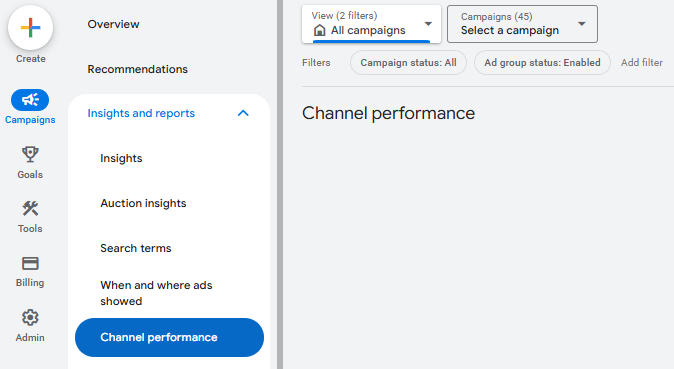
Navigate to the Insights and Reports section on the left menu and select Channel Performance.
From this tab you can gain visibility into how your ads are performing across channels such as Search, Display, YouTube, Discover, Gmail, and Maps.
This allows you to identify which channels are driving the strongest results, allowing for more informed optimisations and better budget allocations. This feature is great for uncovering new opportunities to improve campaign efficiency and maximise your return on investment.
AdWords Scripts
Scripts are awesome for saving time and automating processes that have become a bit monotonous. They are also great at gathering information and sending you notifications so you can spend less time scrutinising your campaigns for issues / errors and more time optimising them.
AdWords Scripts seem to have no limit to their uses.
If you’re good with coding you can create your own scripts, but even if you’re not very skilled at coding you can find lots of free ready-made ones online. This blog has some great ones ready for you to copy and paste or customise.
Our top AdWords Scripts are:
- Disable Ads and Keywords For Out of Stock Items
- Identify 404’s
- Finding Anomalies In Your Keywords, Adgroups, and Ads
Our top tips for using AdWords Scrips are:
- Test them before you roll them out across all accounts / campaigns
- Run different scripts to find the ones that provide the most value to you
- Preview all scripts (especially ones that don’t just bring you information but actually make changes to the account)
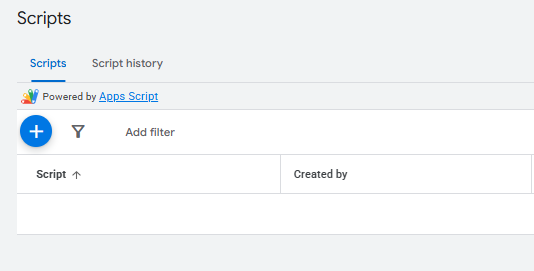
To implement an AdWords Script, go to the Tools tab on the left hand side of the screen, then Bulk Actions, then Scripts. You can then click the blue +Script button and paste in your new script:
Auction Insights
This report is useful if you have a client who is really focused on beating their competitors, because it gives a nice indication of your performance in ad auctions compared to competitors who are eligible to show for the same terms.
The biggest drawback of this report is that the data is not totally accurate, because it is only taken from keywords that have lots of search demand and impressions, rather than lower search volume keywords which might actually be your money-makers.
It’s a great report to use as an indication of performance, rather than as an exact science.
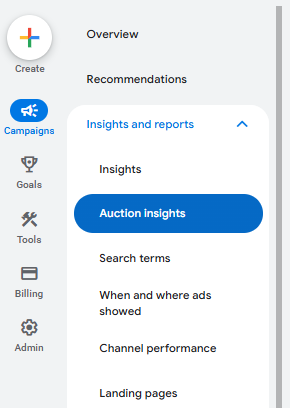
You can find it in the Insights and reports tab on the left menu, then select Auction Insights:
AdWords Labels
AdWords Labels are really useful for marking certain keywords, ad groups, ads or even campaigns with information that isn’t already stored in AdWords.
I like to use them to note when I’m creating new keywords, so I can easily look at a keywords label and see when it was created. This gives me an idea if it’s been running long enough to test search demand if it’s a term that doesn’t get impressions very often.
It’s also great to label keywords that you are a bit uncertain of. For example if a client insists on adding some new keywords but you don’t think they are going to convert very well, you can add a label to each keyword saying ‘client suggestion’ and then when you view your keyword data in the keyword table you can easily see which ones you need to keep an eye on.
You could add labels to ads that contain promotions within their ad text, so you can easily locate them and pause them when the offer ends.
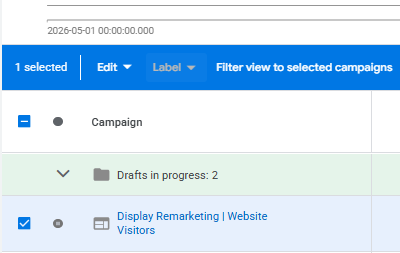
You can filter campaigns, ad groups, ads, and keywords via labels to view the performance of all the account elements you have labelled. Keep in mind that if you label something, it labels that individual element only and no other elements below it. For example, if you label an ad group, the label is only applied to the ad group and not to the keywords within it.
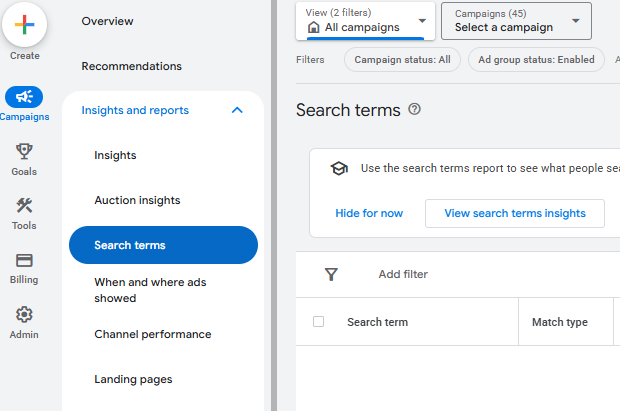
Search Term Reports
Regularly reviewing search term reports is one of the easiest ways to improve campaign performance both short and long term. It’s the simplest way to identify and recognise irrelevant searches that could be wasting your budget, but it’s also a great way to discover high-performing keywords that you’re not already targeting. Applying search terms that are achieving conversions to exact match and excluding poor-quality queries as negatives can quickly improve your campaign efficiency, leading to improved performance.
You can find search term reports by checking keywords in your account or by going to the Insights and report tab and selecting search terms. From here you’ll need to select the campaign to see search terms for your available keywords.
Ad Scheduling
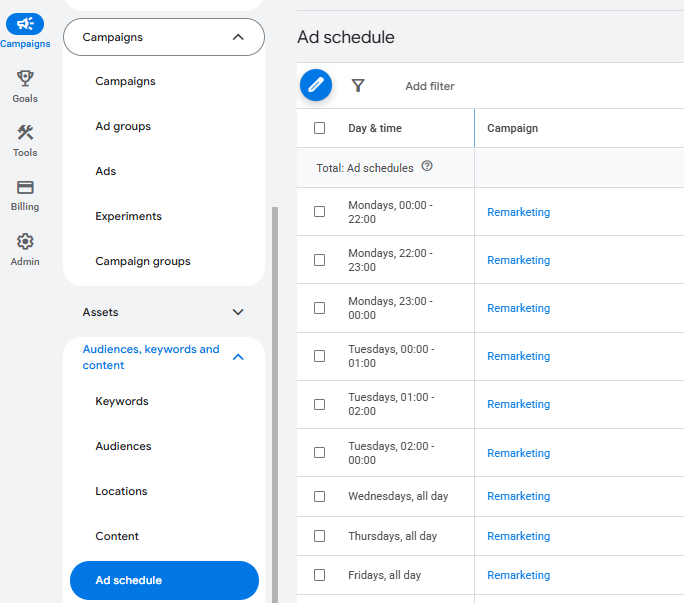
Ad Scheduling is an effective way to improve campaign budget efficiency. Funneling your spend on the times when users are most likely to convert can help reduce costs and ensure you’re spending at times that bring in the most conversions. Some businesses may find string performance at different times of the day or different times of the week. For example, ecommerce might find more purchases in the evenings, usually after work, where lead generation might be more likely to convert during weekday working hours.
Reviewing your performance by hour of day or week can help you identify patterns in audience behaviour which in turn allows for your ads to appear more aggressively when customers are searching the most. Always make sure to analyse your campaign data, such as conversion rates, cost per acquisition, and click-through-rates.
We recommend adjusting your ad schedule in small increments (5%), and always ensure you’re looking back at a wide range of data e.g. the last 6 months rather than a week.
It’s worth noting that to be able to make ad scheduling adjustments, you will need to apply a breakdown of times for your ad data to fill. We usually recommend a breakdown of 6 hours e.g. 00:00-06:00, 06:00-12:00, 12:00-18:00, 18:00-00:00. However, you can adjust it to your liking, and can even leave out specific times to ensure you’re not spending at hours of the day where your business is not open or are unavailable.
To find this, you will need to go to the Audiences, Keywords and Content section on the left side menu. Underneath, you will find ad schedule. Please ensure that you select the right campaign before you make any changes.
Automated Rules
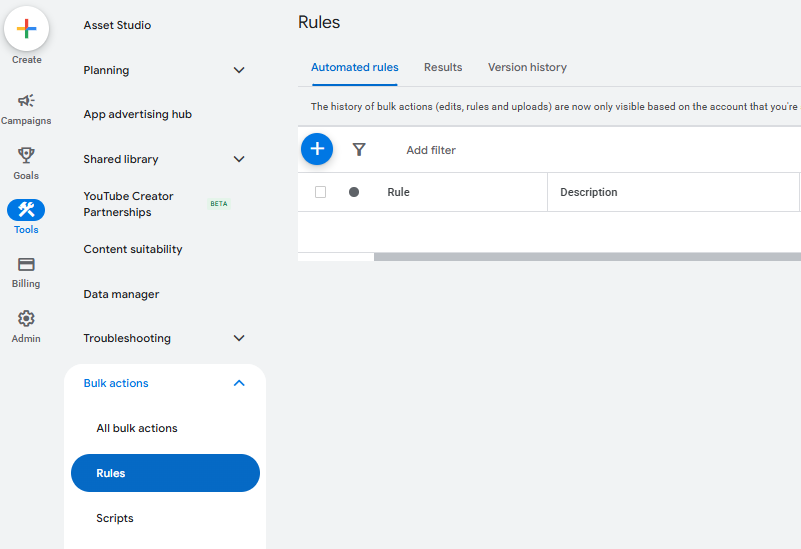
You could well be using automated rules in one form or another, for things such as budget increases / decreases on weekends. There are also other handy ways to use them, such as:
Pause keywords where conversion value / cost is <0 and cost is >£50 using data from last 7 days, running weekly
- If a keyword is => 9.0 in Conversion Value / Cost and avg. position =>5, then increase bidding by 30%.
- If a keyword is => 9.0 in Conversion Value / Cost and avg. position =>3 but <5, then increase bidding by 20%
- If a keyword is => 11.0 in Conversion Value / Cost and avg. position =>2 but <3.1, then increase bidding by 10%
We recommend always selecting email alerts for every time an automated rule makes a change to your account, so you can keep an eye on all changes and make sure there aren’t any keyword anomalies that you don’t want to be affected by the rule. You could also enter a maximum CPC limit, so you know that your bids will never get too high regardless of how often your rule runs.
Although, as the marketing landscape has changed drastically since we first wrote this article, applying maximum CPC limits are a thing of the past.
We would only recommend running this rule if you’re using manual CPC bidding. Think carefully about how often to run rules in conjunction to what data period they should use in the rule criteria, so that you aren’t making changes based on data that has already been assessed and acted upon by the rule.
Optimise Ad Assets
Responsive Search Ads rely heavily on strong headlines and descriptions and can even improve how you rank when your ads bid against competitors going after the same keywords. Rotate in fresh ad copy every few months by testing different ad copy, call-to-actions, and include selling points such as prices, delivery options, offers, and guarantees. These small changes can reward you with higher relevance and engagement which leads to better click-through-rates.
Monitor Impression Share Metrics
Impression share continues to be overlooked by many marketers and businesses. It’s a key metric that can identify what your campaign needs to appear as often as possible.
The three metrics you must be adding to your dashboard columns are Search Impression Share, Lost Impression Share (Budget) and Lost Impression Share (Rank).
Search Impression Share will give you a percentage that tells you how often you appear when your ads are eligible to appear. For example, if your Impression Share is 20%, that means your ads are only appearing 20% of the time your ads are eligible to appear. The question here is why is this happening? The next two columns will tell you exactly why your ads aren’t appearing as often.
Lost Impression Share (Budget) will provide a percentage that shows you that you are appearing less often due to your daily spend. For example, if this percentage is 80%, that means you’re losing out on appearing as often as you could due to low ad spend. Ideally this metric should be as low as possible.
Lost Impression Share (Rank) is a much trickier issue to pinpoint, as usually this suggest that ad relevance, bid strategy, landing page experience, or overall ad quality needs improvement. Much like impression share lost to budget, impression share lost to rank at 70% suggests one of the above factors need to be altered and optimised to reduce this figure to as low as possible.
Improving impression share can often lead to increased traffic, stronger brand visibility, and higher conversion potential when managed alongside overall campaign profitability.
AdWords Experiments
Experiments are an AdWords feature that allows you to test changes to your ads, bids or keywords, landing pages, ad groups and placements.
You could test whether a bid increase results in an increase in conversions, or whether a different landing page results in more conversions.
The benefit of using AdWords experiments over just going ahead and making the change then comparing it to historical data, is that it ensures a completely fair test. If you test two bids at different times, other factors might affect the results (such as price changes or competitor bid changes).
Experiments ensure the tests are simultaneous, with 50% of auctions experiencing the standard ad / bid / landing page, and the other 50% experiencing the new adjustment. You can then review the results after the experiment ends and AdWords will even tell you whether the data is statistically significant enough to make a decision on.
IP Blocking
Most businesses have more than one IP address, but if you can get hold of your competitors IP address (either from their website doing a domain look-up, or from their email (instructions here) then you can block them from viewing your ads.
This is great if you are trying new offers in your ad text or just want to stop competitors seeing exactly what you’re bidding on.
You can exclude IP addresses under the main settings tab for each campaign. You need to add them for every campaign you want to block them from, and you can only block up to 500 IP addresses per campaign.
If you have lots of people in your business who might be actively searching for terms which trigger your ads, you could consider blocking your own internal IP addresses so you don’t generate unnecessary impressions which could damage your Quality Score and performance.
Google Analytics Bid Adjustments Report
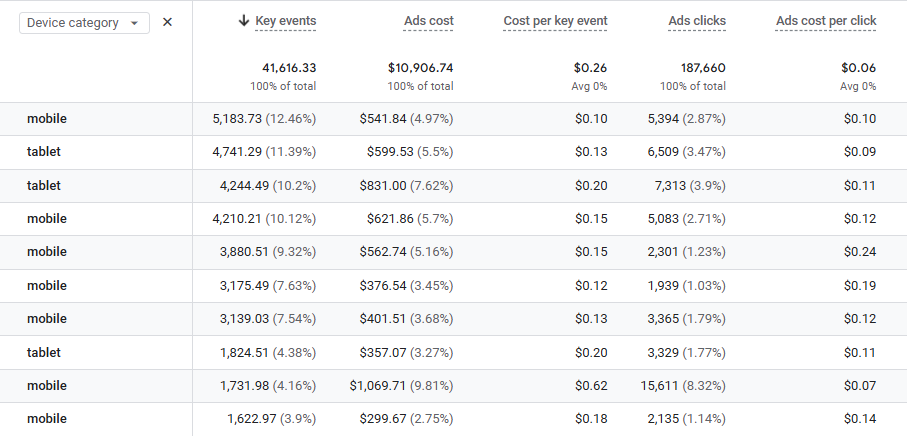
This is a Google Analytics functionality rather than Google Ads, but it is very handy. You can view your ad spend, clicks, CPA, CPCs, revenue and ROAS all on Google Analytics. Simply click on Advertising on the left hand menu of GA4 and you will see data without needing to go to Google Ads. You can also break this down by device category, location and more!
AdWords Conversion Import
Do your final sales happen offline, but you receive enquiries online? If so, this is the AdWords feature for you!
You need to your customer’s Click ID. The data in the form then is exported to your customer management system (including the click ID). At the end of the month you can then import the information on which of these inquiries lead to actual sales, and AdWords will match up the click ID to your keywords so you can see the normal conversion data such as time of day, keyword, ad and much more.
It’s quite complex to set up, so you can find instructions here.
Shared Budgets
Do you have lots of campaigns each with a small amount of budget, and some days certain campaigns are limited by budget but on other days the other campaigns might be limited by budget instead? This daily change in search demand can be tricky for managing campaign budget allocations, but with a shared budget you can allocate the total daily budget to all of them so that they can all spend out of the same pot. This means that the campaigns with the most search demand on that particular day will get the biggest share of your budget so you can be confident you will be spending your clients ad spend where there is greatest search demand.
My only warning about this is to be careful that large search demand campaigns don’t eat up the budget for smaller search demand campaigns that might convert better. If you think this might happen for your account then I’d recommend creating several shared budgets so you can allocate one budget to the generic lower converting campaigns and one shared budget to the higher converting more niche campaigns.
You should also be careful if you switch to shared budgets half way through the day, as they will wipe your ad spend back to zero and start spending the new daily shared budget from scratch, regardless of what has already been spent that day prior to the shared budget being allocated.
Learn more here.
Don’t forget to apply your shared budget to campaigns as you set them up, or do it afterwards if you don’t do it during the set up process.
Hopefully this post has reminded you of some of the AdWords features you might have forgotten about and you can now make more use of them in your day-to-day optimisation!
If you can think of any other useful and underused features please feel free to leave your comments below.
Find out more about our AdWords PPC services today.
Image Source
Tips, Tricks & Solutions via BigStock











Leave a Reply